Prompting•9 min read
Flux Prompts: How to Write Them (2026)
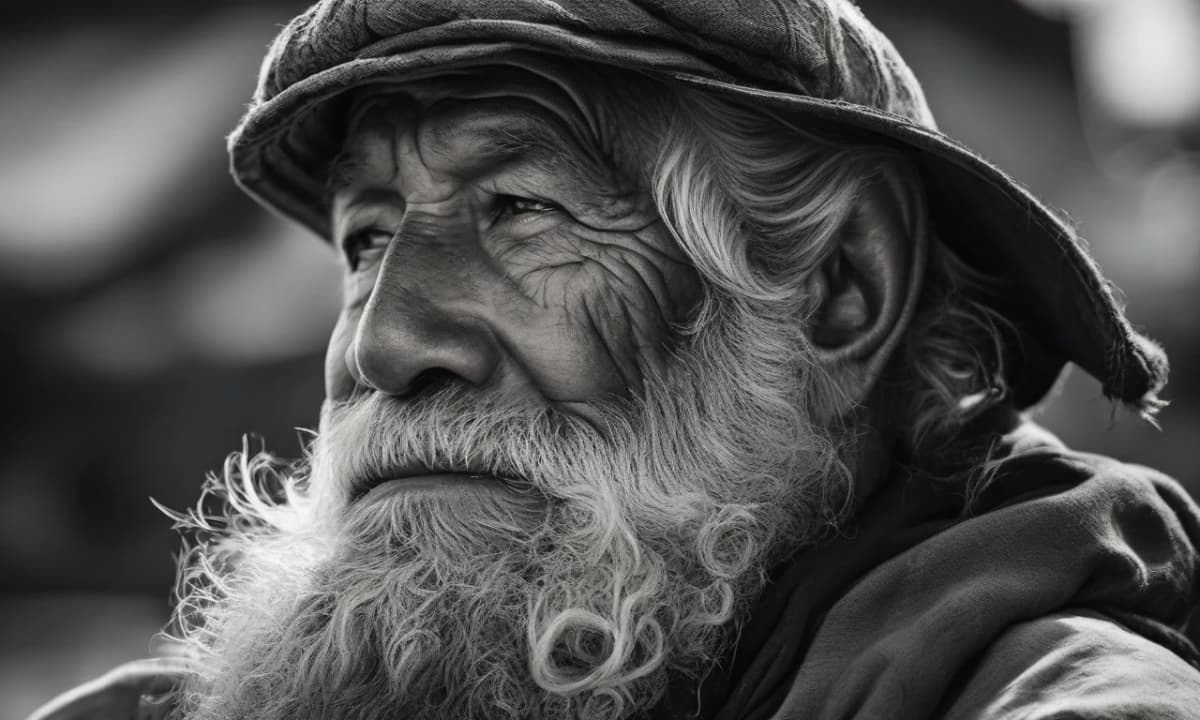
Flux.1 changed what people expect from an image model: reliable hands, legible text, and photographic realism straight from a plain description. But it asks for a very specific kind of prompt — not Stable Diffusion's tag list, and not Midjourney's short sentence, but a single dense, flowing paragraph. This guide shows you exactly how to write for Flux, why it skips tags and negatives, and how to turn any image into a Flux-ready prompt.
TL;DR: Write Flux a single descriptive paragraph that names the subject, the materials, the lighting and a real camera setup — no tags, no negative prompt. The more concrete and physical your description, the closer the result. Or let the tool do it: paste an image into Image to Prompt in Flux mode.
What makes Flux different
Two things set Flux apart as a prompting target. First, it follows description faithfully — it doesn't impose a strong house style the way Midjourney does, so what you write is largely what you get. Second, it reads prose, not parameters: there are no `(term:weight)` tags and, in the fast models, no negative prompt. You steer entirely by what you describe. That makes Flux the most 'what you say is what you see' of the major models — rewarding for precise writers, unforgiving of vagueness.
How to write a Flux prompt
Aim for one flowing paragraph that covers, in natural sentences:
Don't use commas as a tag separator and don't append a negative prompt — neither helps Flux.
See it in action: a real image to a Flux prompt
We ran one image through the Image to Prompt tool in Flux mode and captured the result verbatim.
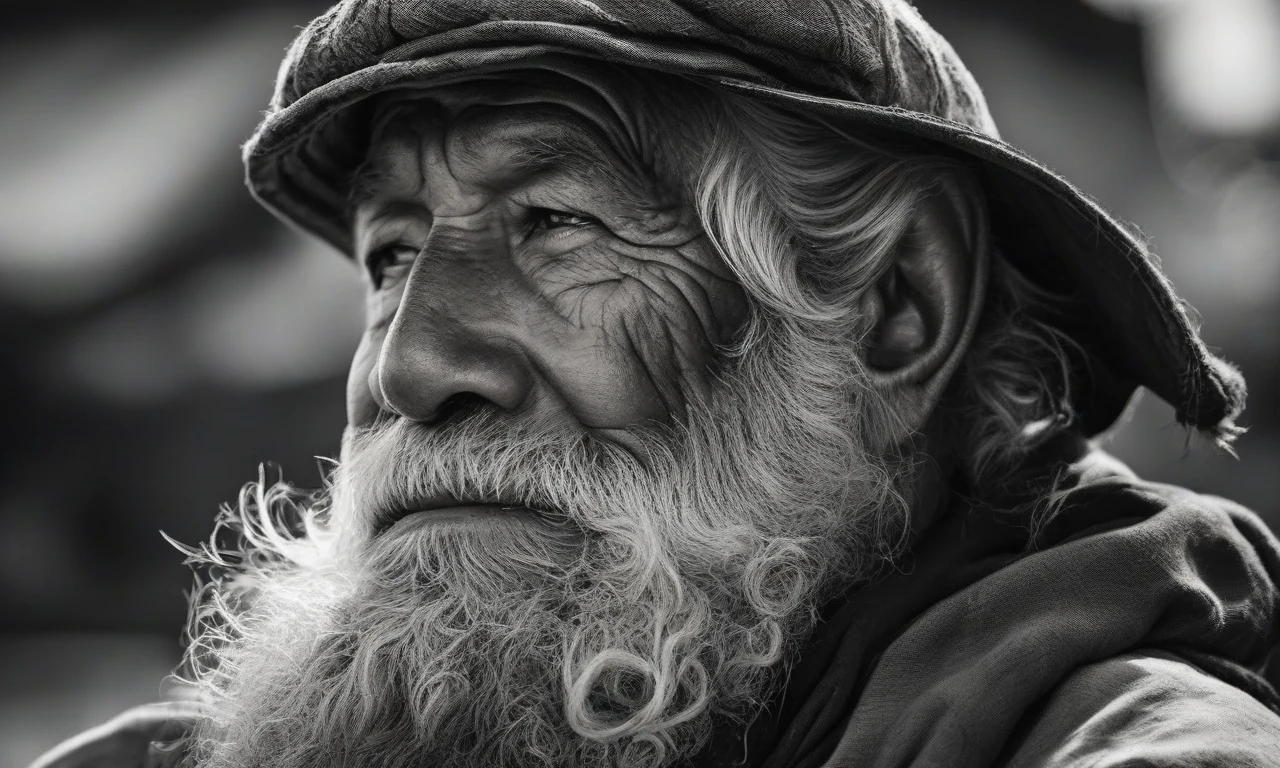
Here is the Flux prompt it produced, exactly as returned — unedited:
The image presents a striking black-and-white portrait of an elderly man, captured in sharp focus against a blurred background that suggests a bustling outdoor setting. The subject's weathered face and wispy white beard convey a life well-lived, while his worn hat adds to the sense of ruggedness. His gaze is directed slightly off-camera to the left, imbuing the scene with a contemplative atmosphere. A subtle hint of light illuminates the top right corner of the frame, casting a gentle glow over the entire composition. This carefully balanced interplay between shadow and illumination creates a captivating visual narrative that invites the viewer to ponder the story behind this enigmatic figure.
And here's what Flux made of it — a faithful, atmospheric match, right down to the worn cap, the wispy beard and the blurred background:
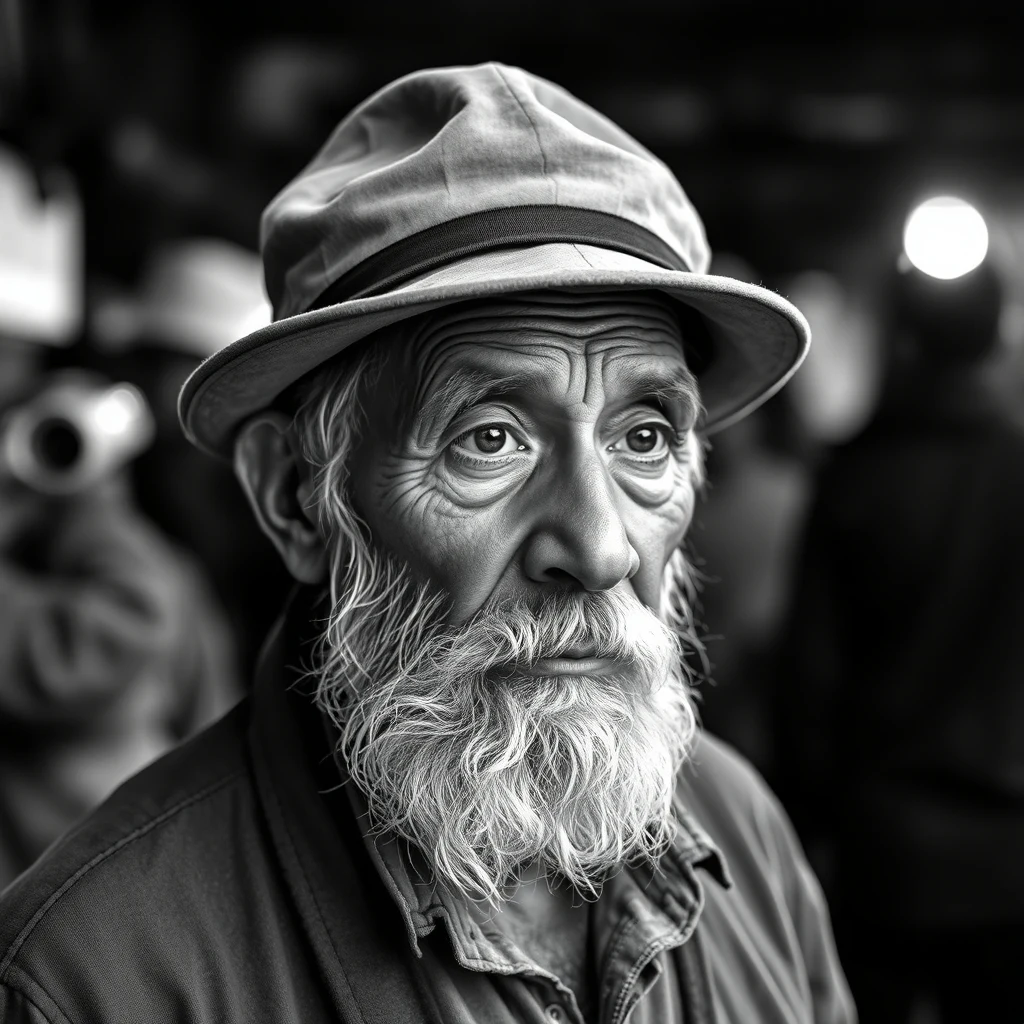
That's a strong start — but it isn't yet a textbook Flux prompt, and the tool's first pass rarely is. Two edits make it one. First, drop the 'The image presents…' opener: Flux responds to a direct instruction, not a description of a description. Second, trade the mood words for the things Flux actually feeds on — named materials and a real camera. Here is the same portrait, refined:
Refined: A weathered old fisherman with a deeply wind-lined face and a wispy white beard, wearing a worn canvas cap; coarse fabric collar, individual beard hairs catching the light; dramatic side light rakes across his skin with deep shadow on the far side; shot on an 85mm lens at f/1.8, shallow depth of field, blurred harbour behind, black-and-white film look.
Same subject, but now every line gives Flux something concrete to work with — named materials, a lens, a lighting direction. That extract-then-refine loop, with the tool doing the first 80%, is the fastest path to a great Flux prompt.
Flux excels at text, hands and realism
Three things Flux does that earlier models struggled with: legible text (put the exact words in quotes, e.g. a storefront sign reading "OPEN", and keep it short), believable hands and anatomy, and photographic realism from plain description. If your project needs readable signage, accurate fingers, or a true-to-life photo look, Flux is usually the strongest choice — and the way you unlock all three is the same: describe them specifically instead of hoping.
Flux schnell vs dev vs pro
| Variant | Best for | Access |
|---|---|---|
| Flux.1 [schnell] | Fast drafts in a few steps | Open (Apache-2.0) — free to run |
| Flux.1 [dev] | Highest-quality open weights | Non-commercial licence |
| Flux.1 [pro] | Top quality, production work | Commercial API |
ImaginPrompt's generator uses schnell, which is why the render above came back in just a few steps. The prompting approach is identical across all three — only the speed and licence change.
The mistakes that weaken Flux prompts
Turn any image into a Flux prompt
If you'd rather not write the paragraph yourself, the Image to Prompt tool's Flux mode reads any reference image and returns a single flowing description in exactly the style Flux prefers — then render it with the AI Image Generator, which runs Flux. Generate, add a touch of camera detail, and you're done.
Get a Flux prompt from any image — free. Upload a reference and the tool returns a flowing, Flux-ready description in seconds, no signup required. Open the Image to Prompt tool →
Flux rewards the writer who describes like a photographer: name the materials, set the light, choose the lens, and let the model do the rest faithfully. Master the dense-paragraph style and you get the most literal, photorealistic image model available — and prompts that behave exactly as you intend.
I
ImaginPrompt
Prompt Engineering Team
Frequently Asked Questions
What makes a Flux prompt different from other models?
Flux wants one dense, flowing paragraph of natural language — not a tag list and not a short sentence. It follows description faithfully, so the more specific you are about materials, light and camera, the closer the result. It also doesn't rely on negative prompts.
Does Flux use negative prompts?
Not in the usual sense. The fast, distilled Flux models don't take a CFG-style negative prompt the way Stable Diffusion does, so you steer by describing what you DO want rather than listing what to avoid. If something unwanted appears, rephrase the positive prompt.
What is the difference between Flux schnell, dev and pro?
Flux.1 [schnell] is the fast, openly-licensed model good for quick drafts in a few steps; Flux.1 [dev] is the higher-quality open-weights model under a non-commercial licence; Flux.1 [pro] is the top-tier version available through an API. ImaginPrompt's generator uses schnell.
Can Flux render text and typography?
Yes — legible text is one of Flux's standout strengths, where older models usually produced gibberish. Put the exact words in quotes in your prompt (for example, a sign reading 'OPEN'), and keep the phrase short for the most reliable results.
How detailed should a Flux prompt be?
Detailed. Flux rewards a full paragraph that names materials (brushed aluminium, weathered oak), spatial layout, lighting and a camera setup. Vague prompts give vague images; concrete, physical description is what unlocks Flux's realism.
What camera language works in Flux?
Real photographic terms: a body and lens ('shot on a 50mm lens'), an aperture ('f/1.4' for shallow depth of field), and lighting ('soft window light', 'golden-hour rim light'). Flux interprets these closely, which is why it's strong for photographic looks.
Can I turn an image into a Flux prompt?
Yes. ImaginPrompt's Image to Prompt tool has a Flux mode that reads any image and returns a single flowing descriptive paragraph in the style Flux prefers, ready to paste into a Flux generator.
Is Flux free to use?
Flux.1 [schnell] is openly licensed and free to run if you have the hardware or use a hosted service; [dev] is free for non-commercial use; [pro] is paid via API. You can plan and write Flux prompts for free with our tools regardless.
Why is Flux good at hands and faces?
Flux was trained with stronger structural understanding than earlier models, so anatomy like hands, and detailed faces, come out far more reliably. You still get the best results by describing the pose and expression clearly rather than leaving them to chance.