Prompting•12 min read
Image to Prompt: Turn Any Image Into an AI Prompt (2026)
AI image generators feel like magic until you try to reproduce a look you love and your prompt comes out generic. The gap is almost never the model — it is the prompt. This guide shows you how to go from any reference image to a precise, model-ready prompt in under a minute, and how to format it correctly for each generator, because Midjourney, Flux, Stable Diffusion, DALL·E 3 and Niji each want something different.
TL;DR: Upload an image to the Image to Prompt tool, pick your target model, and you will get a prompt written in that model's preferred style. The skill is choosing the right format and refining one variable at a time — and the rest of this guide shows you the exact rules our engine uses for each model so you can do it by hand too.
What is image to prompt?
Image to prompt is the reverse of normal AI art. Instead of typing words to get an image, you give the AI an image and it returns the words most likely to recreate it. A vision model reads composition, subject, lighting, color, lens characteristics and style, then writes that back as a ready-to-use text prompt. It is the fastest way to learn prompting: you see a result you want, and the tool hands you the vocabulary that produces it.
Three honest limits are worth knowing up front. First, no tool can read the exact original prompt — it infers one that lands in the same visual neighborhood. Second, the output is only as good as the formatting for your target model (the rest of this guide fixes that). Third, a clean, single-subject image gives the vision model far more to work with than a busy, low-contrast or heavily collaged one.
How to turn an image into a prompt in 60 seconds
That is the entire loop. The skill lives in the second and fourth steps — choosing the right target format, and editing surgically. The next sections show you exactly what each model wants.
Which model should you choose?
This is the single most important idea in prompting: a prompt that is excellent for Midjourney is often wrong for Stable Diffusion, and the reverse. Here is the at-a-glance version — these are the actual rules our engine applies when you pick each model:
| Model | Best prompt format | Lead with / avoid | Auto-suffix |
|---|---|---|---|
| Midjourney v6 | 2–3 natural-language sentences with camera terms | Avoid 4k, 8k, photorealistic (v6 ignores them) | --v 6.0 --style raw --ar |
| Niji | Anime styling + detailed character design | Name an art style (Ghibli, shonen, cel-shaded) | --niji 6 --ar |
| Flux.1 | One dense, flowing descriptive paragraph | Concrete textures + camera specs; never tag lists | — |
| Stable Diffusion XL | Quality preamble + 12 weighted tags | (masterpiece, best quality…:1.2) + a negative prompt | — |
| DALL·E 3 | One 80–120 word scene paragraph | Describe it as real; avoid the word ‘photograph’ | — |
| Nano Banana | Under 25 words, maximum density | Core subject + dominant color + mood only | — |
| Leonardo | Cinematic paragraph + 5 keyword tags | Name the medium (octane render, 3D, oil) | — |
Model by model: the exact rules our engine uses
Midjourney (v6)
Midjourney v6 wants two or three flowing natural-language sentences describing the subject in detail, the environment, the lighting (direction, color temperature, intensity) and the real textures — plus specific camera terminology such as shot on 35mm lens, f/1.8, shallow depth of field. Avoid the buzzwords photorealistic, 4k and 8k: Midjourney v6 effectively ignores them, so they add nothing and crowd out the description that actually steers the image. Our engine ends every Midjourney prompt with --v 6.0 --style raw --ar [your image's ratio] — it detects the aspect ratio of the image you uploaded and matches it automatically. The Midjourney prompt generator applies all of this for you.
Flux.1
Flux rewards a single, dense, flowing paragraph — never a comma-separated tag list. Document exact material textures (brushed aluminum, weathered oak), precise spatial layout and object placement, camera specifications such as Leica M11, 50mm lens, f/1.4, and complex lighting such as golden hour rim lighting with volumetric dust particles. Flux follows concrete, physical description unusually well, so the more specific you are, the closer the result.
Stable Diffusion (SDXL)
Stable Diffusion is the opposite of Flux: it wants weighted tags, not prose. Our engine begins the prompt with (masterpiece, best quality, highly detailed:1.2), then one short subject sentence, followed by around a dozen comma-separated Booru-style tags in descending order of importance — covering art medium, lighting, color palette, texture, camera angle, render engine and mood (for example: volumetric lighting, octane render, film grain, shallow depth of field). It then appends a negative prompt automatically; more on that below. The Stable Diffusion prompt generator builds this exact structure.
DALL·E 3
DALL·E 3 takes one comprehensive paragraph of roughly 80–120 words, written as if you are narrating a scene that exists in reality. Use exact spatial relationships (in the foreground, behind the subject), specific colors and materials, and the lighting atmosphere. The key quirk: avoid the words photograph and image — DALL·E 3 responds best to conversational, story-like descriptions of a real scene, and naming a medium (oil painting, thick impasto brushstrokes) steers its style cleanly. The DALL·E prompt generator handles this framing.
Niji (anime)
For anime and illustration, Niji wants a vivid description of the character design (hairstyle, clothing, accessories, expression), a named art style (Studio Ghibli, shonen, watercolor manga, cel-shaded), a vibrant palette, and anime composition terms such as dynamic angle, soft sakura bokeh or dramatic speed lines. Our engine ends Niji prompts with --niji 6 --ar [your image's ratio], again matching your source image automatically.
And the rest
The same tool also targets Nano Banana (an ultra-concise prompt under 25 words for token-efficient models), Leonardo (a cinematic paragraph plus five heavily-weighted keyword tags), and specialist modes for structured JSON, cinematic photography, UI/UX screenshots and logos — each with its own extraction logic. Pick the one that matches where your prompt is going.
Going deeper: each of the big models has its own dedicated guide — Midjourney prompts, Stable Diffusion prompts, Flux prompts and DALL·E 3 prompts — plus a full walkthrough of negative prompts.
See it in action: one image, five real prompts
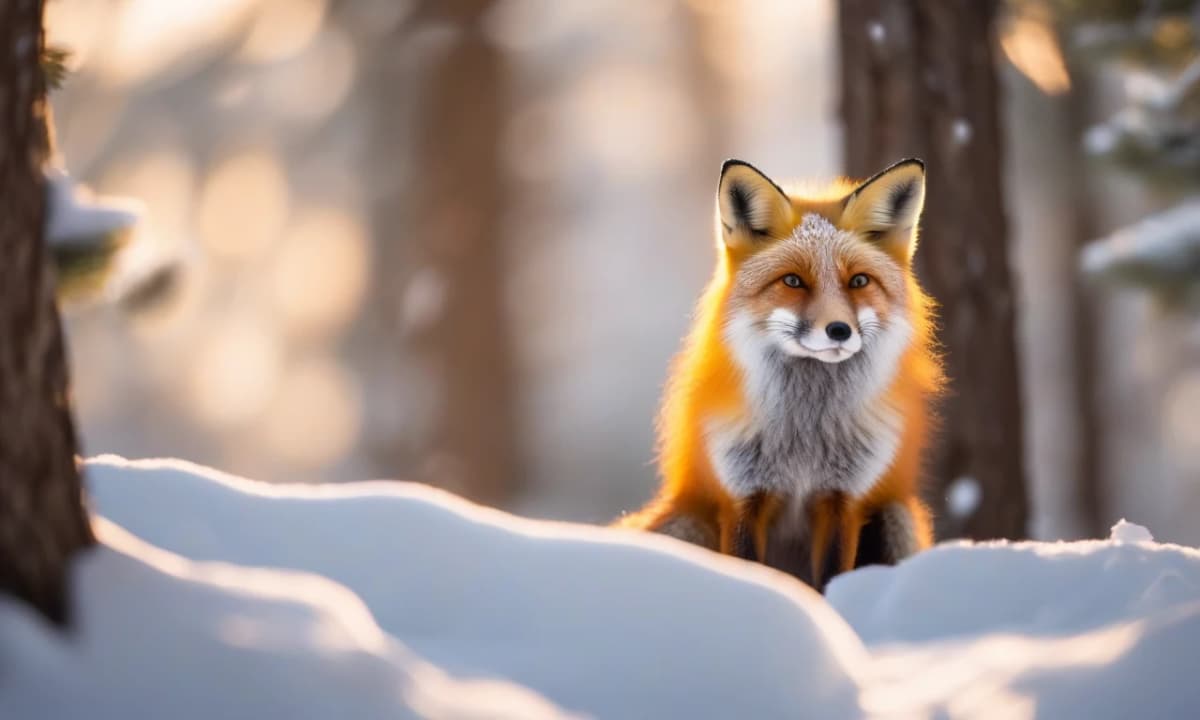
To show this is real and not theory, we ran a single image through the Image to Prompt tool five times — once for each model — and captured the output exactly as the tool returned it. Below is that unedited output, followed by what two of those prompts regenerate into. Every prompt and image here is genuine first-party output.
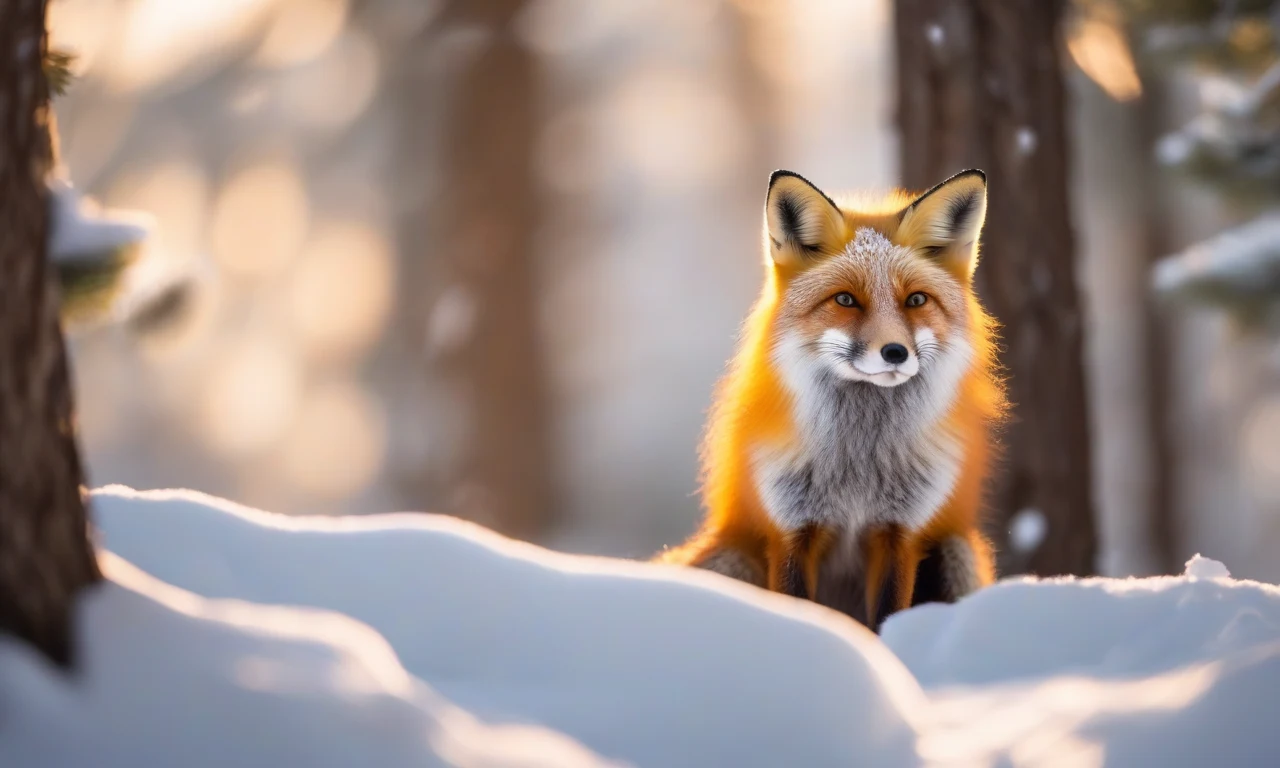
Here are the five prompts the tool returned, copied verbatim — one per model. Notice how different they are from one another:
Midjourney v6 — The image presents a captivating scene of a red fox standing amidst snow-covered trees, its gaze directed at the viewer. The fox's fur exhibits a vibrant orange hue, complemented by a white-tipped tail and chest, while its eyes shine bright amber. Its ears stand upright, alert to potential threats. In the foreground, two tree trunks flank the fox, their bark appearing rough and weathered. A layer of fresh snow blankets the ground, creating a serene winter landscape. The sun casts dappled shadows through the trees, imbuing the atmosphere with warmth and tranquility. As the eye travels further into the distance, additional trees come into view, their branches heavy with snow. The overall effect is one of peaceful coexistence between nature and wildlife, as if time has stood still in this idyllic setting. --v 6.0 --style raw --ar 16:9
Flux.1 — The image depicts a fox standing in the snow, surrounded by trees and sunlight filtering through the branches. The fox's fur is a vibrant orange color, with white markings around its face and neck. Its ears are perked up, as if listening for potential prey. The fox appears to be looking directly at the viewer, its eyes shining bright red in the sunlight. In the foreground, there is a layer of deep snow that covers the ground, with some drifts reaching up to the base of the tree trunks. The snow is pristine and untouched, except for a few footprints leading away from the fox towards the left side of the image. The overall atmosphere of the scene is one of serenity and tranquility, with the warm glow of the sun casting long shadows across the snowy landscape. The fox seems completely at ease, blending seamlessly into its surroundings as it surveys its domain.
Stable Diffusion XL — (masterpiece, best quality, highly detailed:1.2) A majestic red fox stands amidst a serene winter wonderland, its vibrant orange fur glistening in the soft light that filters through the trees. The snow-covered landscape stretches out before it, punctuated by towering evergreens that stand sentinel against the gentle breeze.
film grain, volumetric lighting, warm tones, high contrast, sharp focus, realistic rendering, naturalistic colors, shallow depth of field, subtle bokeh, atmospheric perspective, soft shadows, cozy atmosphere, peaceful ambiance
Negative prompt: (worst quality:1.4), (low quality:1.4), (normal quality:1.2), lowres, blurry, jpeg artifacts, bad anatomy, bad hands, extra fingers, missing fingers, watermark, signature, text, ugly, deformed
film grain, volumetric lighting, warm tones, high contrast, sharp focus, realistic rendering, naturalistic colors, shallow depth of field, subtle bokeh, atmospheric perspective, soft shadows, cozy atmosphere, peaceful ambiance
Negative prompt: (worst quality:1.4), (low quality:1.4), (normal quality:1.2), lowres, blurry, jpeg artifacts, bad anatomy, bad hands, extra fingers, missing fingers, watermark, signature, text, ugly, deformed
DALL·E 3 — A red fox with a fluffy white-tipped tail stands at attention behind a snowbank, its gaze directed straight ahead into the distance. The fox's fur glistens in the sunlight, which filters through the trees above, casting dappled shadows across the snowy terrain. In the foreground, two tree trunks rise up, their bark rough and weathered, while the blurred background suggests a forest of evergreens stretching out beyond the clearing where the fox stands watchful sentinel.
Niji — Create an anime-style illustration of a fox standing amidst snow-covered trees, exuding warmth and curiosity. The fox's fur should be rendered in soft, fluffy brushstrokes, with a gradient of orange hues that deepen towards its tail. Its eyes should sparkle with intelligence, while its bushy white-tipped tail adds a playful touch. The surrounding environment should be depicted in warm, golden tones, with soft sakura bokeh effects to convey a sense of serenity. Snowflakes gently falling around the fox create a dynamic scene. Composition-wise, employ dramatic speed lines to emphasize the fox's movement as it turns its head. Art Style: inspired by Studio Ghibli's whimsical approach, blending traditional Japanese motifs with modern digital techniques, with delicate line work and expressive character design. Atmospheric mood: peaceful contemplation, capturing the stillness of a snowy forest at dawn. --niji 6 --ar 16:9
Now the proof. We fed two of those prompts straight back into our AI Image Generator — the Flux prompt to Flux, the Stable Diffusion prompt to SDXL — without editing a word:
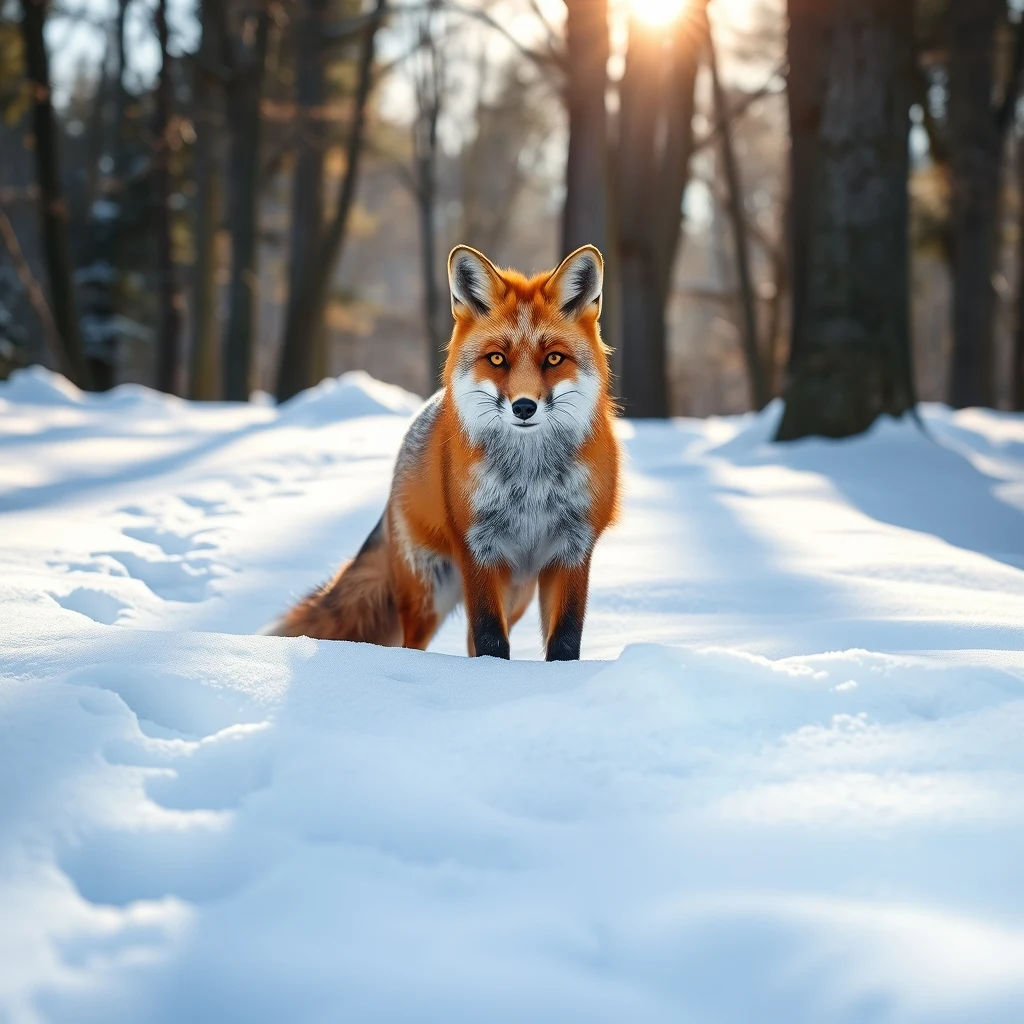
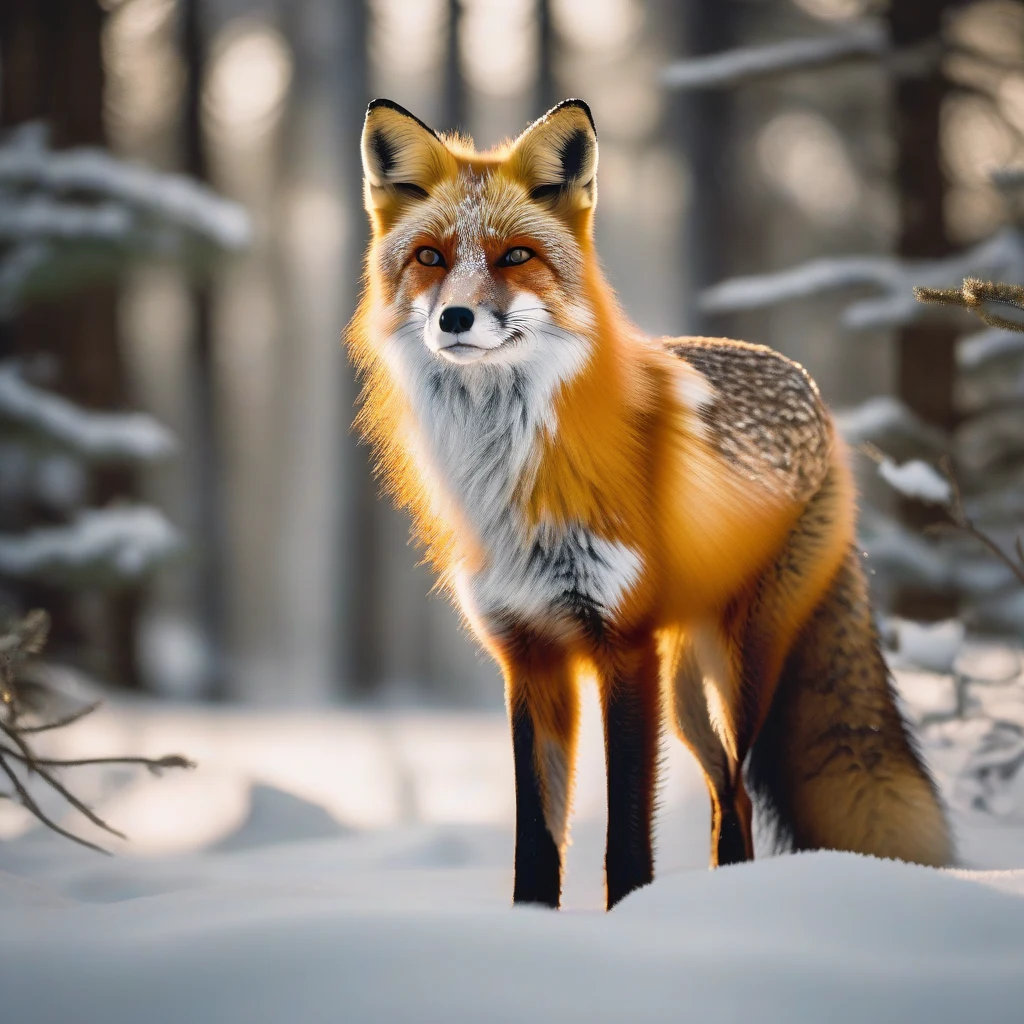
One image, five different prompts — Midjourney's flowing sentences, Flux's dense paragraph, Stable Diffusion's tag list with its own negative prompt, DALL·E's scene-as-reality narration, and Niji's anime styling. And neither render is a pixel-perfect copy of the original fox — that is exactly what to expect: image to prompt lands you in the same visual neighborhood, and each model's prompt style pulls the result in a visibly different direction.
Copy-paste prompt skeletons
Start from these fill-in-the-blank templates, or let the tool produce them for you:
Midjourney v6 — [subject, in vivid detail], [environment], [lighting: direction + color temperature], [key textures], shot on [lens, e.g. 35mm f/1.8] --v 6.0 --style raw --ar 16:9
Flux.1 — A [subject] [action], [exact material textures], [spatial layout], shot on [camera, e.g. Leica M11 50mm f/1.4], [complex lighting], [mood] — one flowing paragraph, no tag lists.
Stable Diffusion XL — (masterpiece, best quality, highly detailed:1.2), [one-sentence subject], [tag 1], [tag 2] … [tag 12]. Negative prompt: (worst quality:1.4), (low quality:1.4), lowres, blurry, bad anatomy, bad hands, watermark, signature, text
DALL·E 3 — [Scene as reality: foreground, subject, background], [specific colors + materials], [lighting atmosphere], [named art style]. 80–120 words, conversational, never the word ‘photograph’.
Niji — [character design], [named art style, e.g. cel-shaded shonen], [vibrant palette], [anime composition, e.g. dynamic angle] --niji 6 --ar 2:3
Negative prompts: the other half of the image
A negative prompt tells the model what to exclude. It matters most on Stable Diffusion — and our tool appends one automatically, so you do not have to remember it:
Negative prompt: (worst quality:1.4), (low quality:1.4), (normal quality:1.2), lowres, blurry, jpeg artifacts, bad anatomy, bad hands, extra fingers, missing fingers, watermark, signature, text, ugly, deformed
Midjourney handles the same job with its own --no flag (for example, --no text, watermark) — note that this is a Midjourney feature you add yourself; the extractor does not insert it. Flux and DALL·E 3 largely do not use negatives at all. Match the technique to the model rather than pasting a negative prompt everywhere.
The four mistakes that make prompts generic
How accurate is image to prompt?
Accuracy depends mostly on the image, not the tool. A clean shot with one clear subject, readable lighting and a recognizable style produces a prompt that gets you most of the way back on the first try. A busy collage, a tiny low-resolution thumbnail, or an image with five competing subjects gives the vision model less signal, so the prompt comes back broader and more generic. The realistic expectation is not a pixel-perfect copy but a strong starting point in the same visual neighborhood, which you then refine one variable at a time.
Free to use — and what happens to your images
The Image to Prompt tool is free to try without an account, within a daily limit; creating a free account raises that limit, and paid plans add pro routing and higher volume. Your uploaded image is sent securely to the vision model to generate your prompt and is not published to the public gallery. For full details on how data is handled, see our Privacy Policy.
What you can use it for
From prompt back to image
Once you have a clean prompt, close the loop without leaving ImaginPrompt. Use the text-to-prompt enhancer to expand or re-target a prompt for a different model (or translate it into another language), or the AI Image Generator to render it directly. A reliable workflow: extract a prompt from a reference, enhance it for your target model, generate, then feed your favorite result back into Image to Prompt to learn what made it work. Each pass sharpens your instinct for the vocabulary that gets results.
Try image to prompt yourself — free. Upload any image and get a model-ready prompt in seconds, with no signup required. Open the Image to Prompt tool →
You do not need to memorize any of this to start — the Image to Prompt tool applies these model-specific rules for you. But understanding why a Midjourney prompt reads like a sentence while a Stable Diffusion prompt reads like a tag list is what turns prompting from guesswork into a repeatable skill.
I
ImaginPrompt
Prompt Engineering Team
Frequently Asked Questions
What is image to prompt?
Image to prompt is the reverse of normal AI art: instead of typing words to create an image, you upload an image and a vision model returns the text prompt most likely to recreate it. It reads composition, subject, lighting, color and style, then writes that back as a ready-to-use prompt.
Is the image to prompt tool free?
Yes. You can extract prompts without an account, within a daily limit. A free account raises that limit, and paid plans add pro routing and higher volume. No credit card is needed to try it.
How accurate is image to prompt?
No tool can recover the exact words behind an image — it infers a prompt that lands in the same visual neighborhood: same subject, lighting, style and composition. Clean, single-subject images give the most accurate results; busy collages give the vision model less to work with.
Which model should I choose when extracting a prompt?
Pick the model you will actually generate with. Midjourney and DALL·E 3 want natural-language sentences; Stable Diffusion wants weighted tags; Flux wants a dense descriptive paragraph; Niji is tuned for anime. The tool formats the output for whichever you select.
Why does my Midjourney prompt look worse when I add ‘4k’ and ‘photorealistic’?
Midjourney v6 effectively ignores those quality buzzwords, so they add nothing and crowd out the real description that actually steers the image. Describe the scene specifically — subject, lighting, lens — and end with --v 6.0 --style raw instead.
Do I need a negative prompt?
Mainly on Stable Diffusion, where the tool automatically appends a negative prompt that removes common failures like distorted hands and watermarks. Midjourney uses --no for the same purpose, while Flux and DALL·E 3 rarely need negatives at all.
Can I use any image — screenshots, photos, illustrations?
Yes. Photos, digital art, illustrations and screenshots all work. The cleaner and more single-subject the image, the more precise the prompt; very busy or low-contrast images produce broader, less specific results.
What happens to the images I upload?
Your image is sent securely to the vision model to generate your prompt; we do not publish your uploads to the public gallery. See our Privacy Policy for full details on data handling.
Can I get the prompt in another language?
Yes. Use the text-to-prompt enhancer's translate mode to convert any prompt into another language while preserving its structure and any model parameters such as --ar or --v.