AI Art Generator
Create breathtaking AI art from text — paintings, illustrations & concept art.
From One Line of Text to Finished Artwork
Type what you want to see and let the engine paint it. This AI art generator turns plain written descriptions into finished artwork using SDXL 1.0, with nothing to install and no prompt syntax to memorize. The full loop has three steps.
Describe the Artwork
Write a sentence or two in the text box covering subject, setting, and the art style you want, such as 'watercolor harbor at dawn' or 'low-poly desert canyon at sunset.'
Set Ratio and Exclusions
Pick your frame — anything from a 1:1 square to a 9:16 vertical — and, if you like, open the negative prompt field to name whatever should stay out of the picture.
Render and Save
Hit generate and SDXL 1.0 paints your artwork right in the browser. Download the result as PNG, JPEG, or WebP, or tweak your wording and regenerate until it sings.
One Text Box, Every Style From Watercolor to Synthwave
Most generators lock you into a single signature look. This AI art generator goes the other way: because SDXL 1.0 was trained across an enormous range of visual media, the style you name is the style you get. Ask for a loose watercolor wash, a moody digital painting, polished game concept art, crisp anime linework, a neon synthwave grid, a faceted low-poly landscape, or a swirling fractal abstract, and the engine shifts its entire rendering approach to match. One text box covers territory that would normally take a shelf of specialized apps.
You do not need prompt engineering credentials to get strong results here. A plain sentence like 'watercolor painting of a lighthouse in a storm' carries enough signal, because SDXL reads natural language directly rather than requiring special syntax. When a piece deserves more polish, feed the rough phrase into our text to prompt optimizer first; it layers in lighting, mood, and composition detail, and you paste the richer version back into the art generator. The text to art loop stays the same either way: your words go in, finished artwork comes out.
Style consistency is the difference between a random image and a usable series. The technique is simple: when a render nails the look you want, save the style keywords from the end of your description and reuse them verbatim under every new subject. Ten different scenes with the same tail read as one coherent collection, which matters for cover art, brand visuals, and portfolio sets. And when a project calls for photorealism instead of stylized digital art, the companion AI image generator handles photographic and product-style renders with the same one-line workflow.
- Watercolor to synthwave from one text box
- Rendering powered by SDXL 1.0
- Five aspect ratios, square to vertical
- Optional negative prompt for cleaner renders
What People Make With an AI Art Generator
Different fields, same bottleneck: custom artwork is slow or expensive to source. Here is how six groups use text to art generation to skip that line.
Game Concept Artists
Block out environment and character concept art in minutes, testing low-poly, painterly, and pixel-adjacent directions before committing a single hour of artist time.
Self-Publishing Authors
Generate cover concepts and chapter illustrations in a consistent digital painting style, iterating on mood and composition without commissioning every draft.
Musicians & Podcasters
Produce synthwave album covers, single art, and episode thumbnails in square format, matching each release to one signature visual identity.
Print-on-Demand Sellers
Create fractal, abstract, and low-poly designs for posters and apparel, generating fresh variations of a bestselling aesthetic on demand.
Social Media Creators
Render vertical 9:16 anime and watercolor pieces sized for stories and reels, with no cropping or letterboxing needed afterward.
Educators & Presenters
Illustrate slides and lesson materials with custom artwork instead of recycled clip art, matching visuals precisely to the topic being taught.
Generating Art vs. Buying It or Renting a Single Look
Before browser-based generation, sourcing custom artwork meant either a one-style app or a stock license. Here is how the three approaches compare on the points that matter.
| Feature | ImaginPrompt | Single-Model Apps | Stock Image Libraries |
|---|---|---|---|
| Style range | ✅ Watercolor to synthwave to 3D | ⚠️ One signature aesthetic | ⚠️ Limited to existing uploads |
| Custom subjects on demand | ✅ Anything you can describe | ✅ Yes, in one style | ❌ Search only, no new scenes |
| Aspect ratio control | ✅ Five ratios, 1:1 to 9:16 | ⚠️ Varies by app | ❌ Fixed to the original crop |
| Negative prompt filtering | ✅ Built-in optional field | ⚠️ Often hidden or absent | ❌ Not applicable |
| Exclusivity of results | ✅ Each render newly generated | ✅ Also generated fresh | ❌ Same files licensed to many buyers |
| Getting started | ✅ Free daily credits, in-browser | ⚠️ Signup or install is common | ⚠️ Licensing fees are standard |
Stock libraries win when you need a real photograph of a real event. For everything else, an AI art generator that renders any style on demand beats both the single-look app and the licensing queue.
SDXL Techniques Worth Stealing
💡 Put the medium first
SDXL weights early words heavily, so open with the art form itself: 'oil painting of,' 'anime still of,' 'low-poly render of.' The same subject changes completely depending on which medium leads the sentence.
💡 Build a reusable style tail
When a render hits the look you want, copy its trailing style keywords for palette, lighting, and finish into a note. Pasting that tail after each new subject keeps an entire series visually consistent.
💡 Clean up with the negative prompt
Recurring flaws like blurry edges, stray text, or mangled hands rarely need a rewritten description. List them in the negative prompt field and regenerate; exclusions often fix a piece faster than additions.
💡 Generate at the final ratio
Choose your aspect ratio before rendering instead of cropping afterward. SDXL composes for the frame it is given, so a 16:9 banner generated natively balances far better than a cropped square.
Three Styles, One Text Box
These pieces from our public gallery show the stylistic distance this tool covers, from sacred-geometry fractals to flat-shaded low-poly terrain to molten abstract metalwork, each starting as nothing but a written description.
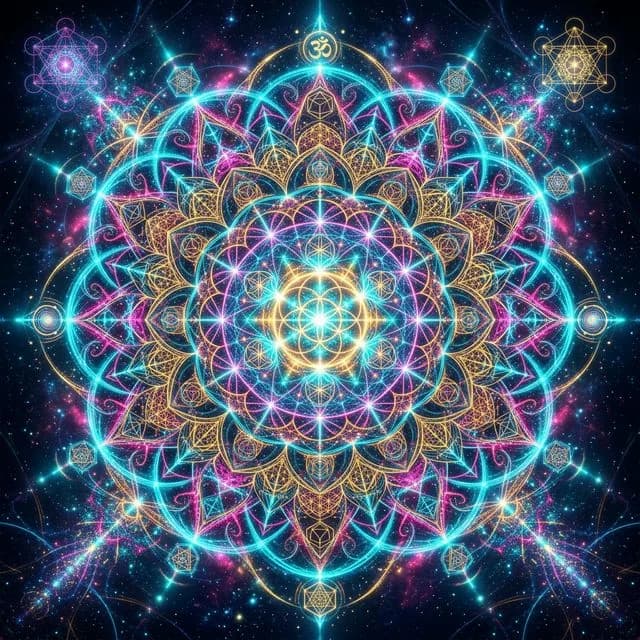
Sacred Fractal Mandala
Intricate digital art, infinite looping details, ultra high definition
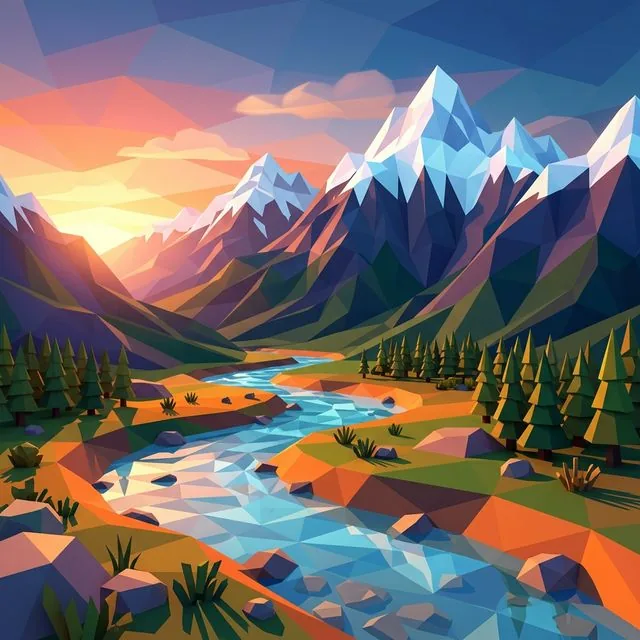
Low Poly Mountain River
Vibrant low poly 3D digital art, minimalist flat shading aesthetic
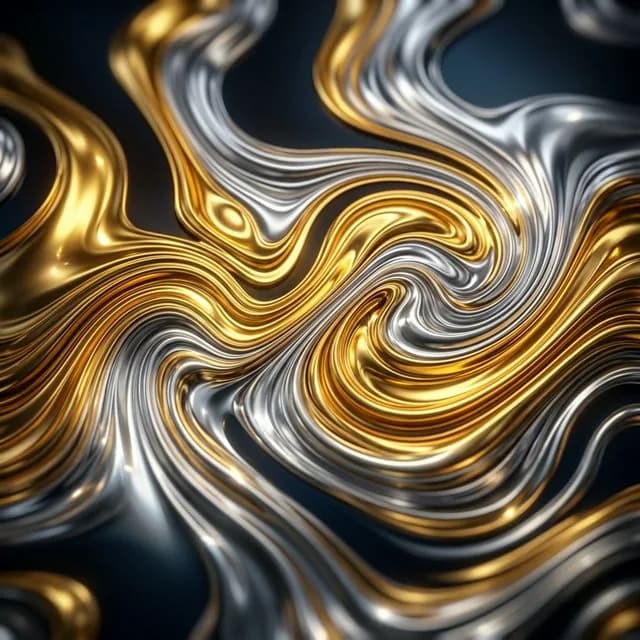
Abstract Liquid Gold
Hypnotic abstract digital rendering, high contrast reflections, premium abstract art
Frequently Asked Questions
What art styles can the tool actually produce?+
Any style you can name in words. Digital painting, watercolor, concept art, anime, synthwave, low-poly 3D, and fractal abstract are the most requested, but SDXL 1.0 was trained across a huge range of visual media, so niche aesthetics like linocut, gouache, or isometric pixel art work too.
Do I need prompt engineering skills to use it?+
No. A plain sentence describing subject, setting, and style is enough to start generating. If you want finer control, the text to prompt tool on this site can expand a rough idea into a detailed, layered description that you paste back in here before rendering.
What model powers this AI art generator?+
Artwork is rendered by SDXL 1.0 by default, a diffusion model known for handling complex artistic layouts and a wide spread of styles. An AI Base Model selector on the page lets you switch engines if you prefer, but no configuration is required to start: describe the artwork in the text box and generate.
Is the tool free, and does it require a download?+
The generator ships with a daily allotment of complimentary credits, and rendering takes place entirely inside your web browser. Nothing gets installed, no local GPU is needed, and every finished piece saves straight to your device the instant it renders.
How do I keep a consistent style across multiple images?+
Reuse your style keywords. Keep the descriptive tail of a successful render, the part covering palette, lighting, and finish, and append it unchanged to each new subject. The subjects vary while the aesthetic holds, which is how creators build matching series and cohesive collections.
Can I control the shape and orientation of the artwork?+
Yes. Five aspect ratios are available before you generate: 1:1 square, 16:9 widescreen, 9:16 vertical, plus 4:3 and 3:4. Picking the right one up front matters, because the model composes the entire scene for the exact frame you select.
What does the negative prompt field do?+
It tells the model what to leave out. Type comma-separated terms like blurry, watermark, extra limbs, or text, and the generator steers away from them while rendering. It is optional, but a short exclusion list often fixes recurring artifacts faster than rewriting your main description.
In what formats can I download my finished art?+
The download menu offers PNG for lossless quality, JPEG for smaller files, and WebP for the web, along with additional export options for print and sharing. Your artwork saves at its full generated resolution, ready to publish, print, or post immediately.
Learn More
Explore More AI Tools
Text to Image Generator
Type a scene and render it as an image with model and ratio controls.
AI Photo Editor
Generate and refine hyper-realistic photos with studio lighting looks and cinematic depth of field.
AI Image Generator
Create any kind of image from text, from product shots to sweeping landscapes.