Text to Image AI
Convert text to stunning images instantly — free AI text-to-image generator.
Turn a Sentence Into a Picture in Three Steps
Picture a scene, put it into words, and watch the model build it. Our text to image generator works right in your browser: describe what you want, choose a model and a frame shape, then download the finished picture. No design experience needed.
Describe Your Scene
Type a plain-language description in the prompt box. A subject, a setting, and a style is plenty to start; if you are stuck, the inspiration button loads a ready-made example.
Pick a Model and Orientation
Choose Stable Diffusion XL for versatile stylized art or Flux.1 Schnell for lifelike textures, then select a square, landscape, or portrait aspect ratio to match where the image will live.
Generate, Compare, Refine
Press generate and your image appears on the page, ready to download. Keep the phrases that worked, reword the rest, and run it again to iterate on your idea.
How Wording Shapes What the AI Draws
Every text to image result starts with the words you feed it. The model reads your sentence and gives weight to each idea, so a vague line like "a nice landscape" leaves most decisions to chance. A stronger prompt names four things: a subject (a lighthouse keeper), a setting (a storm-battered coastline at dusk), a style (oil painting or 35mm photograph), and the lighting (warm lantern glow, cold moonlight). Cover those four and the AI has enough direction to compose an image that matches the picture in your head instead of a generic guess.
Treat your first render as a draft, not a verdict. Keep the parts you like, then shift a single element per pass — nudge the lighting, tighten the setting, or push the style harder — and generate again. Orientation matters too, since a 16:9 landscape frame invites wide scenery while a 9:16 portrait crop favors a single centered figure. When a phrase keeps underdelivering, run it through our text to prompt enhancer to expand a rough idea into a fully detailed description before you render, and lean on the negative prompt box to name the elements you would rather exclude.
- Five aspect ratios from square to widescreen
- Flux.1 Schnell and SDXL model options
- Optional negative prompt filters unwanted elements
Made for People With Ideas, Not Illustration Skills
Anyone who can describe a scene can generate one. People reach for text to image generation in jobs like these every day.
Bloggers and Writers
Generate an original header image for every article by describing the exact scene you want instead of digging through stock photo libraries.
Tabletop and Fiction Fans
Bring characters and locations to life: describe your ranger's cloak or a moonlit tavern and get shareable art in one pass.
Small Business Owners
Mock up promo banners, seasonal visuals, and social posts in-house, sized to the right orientation before you ever open an editor.
Describing an Image vs. Making One the Old Way
When you need a custom visual, the traditional routes are learning design software or hiring the work out. Here is how simply describing what you want compares to both.
| Feature | ImaginPrompt | Design Software | Freelance Commissions |
|---|---|---|---|
| Skill required to start | ✅ Write one plain-English sentence | Months of practice to work confidently | Writing briefs and giving feedback |
| Turnaround per image | ✅ Renders while you wait | Hours of manual composition | ⚠️ Days to weeks per revision cycle |
| Cost to experiment | ✅ Free daily credits included | ⚠️ License or subscription fees | ❌ Charged per project |
Design software and commissions still shine for pixel-perfect brand work, but for fast, affordable concepting and everyday visuals, typing a description into a text to image generator gets you from idea to picture sooner than either.
Two Habits That Improve Every Render
💡 Match the model to the mood
Choose Flux.1 Schnell when you want lifelike textures like skin, fabric, or food photography, and Stable Diffusion XL when you want stylized illustration, fantasy scenes, or bold graphic looks.
💡 Lock the idea, vary one word
When a render is close, re-run the same prompt and change a single phrase, such as "golden hour" to "overcast noon." Comparing the two side by side teaches you exactly what each word controls.
Prompts You Can Type Right Now
Each of these images began as a written description like the ones below. Copy a prompt into the generator above, then remix the subject, setting, or style to make it yours.
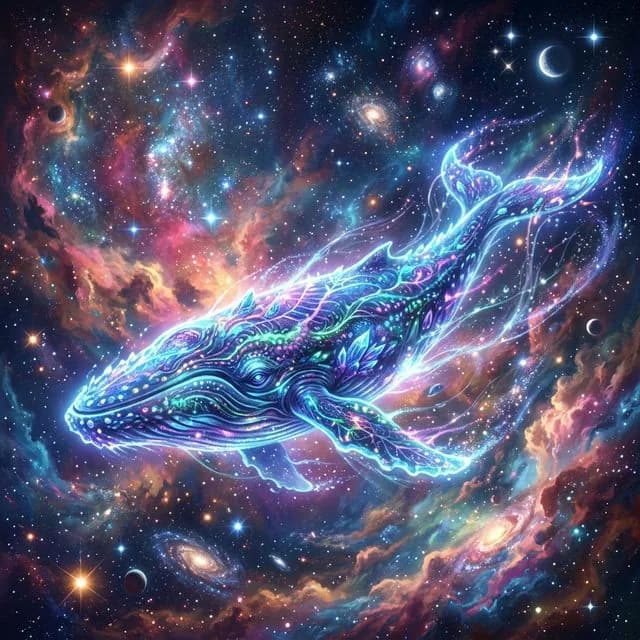
Cosmic Space Whale
Ethereal glowing space dust, highly detailed concept art
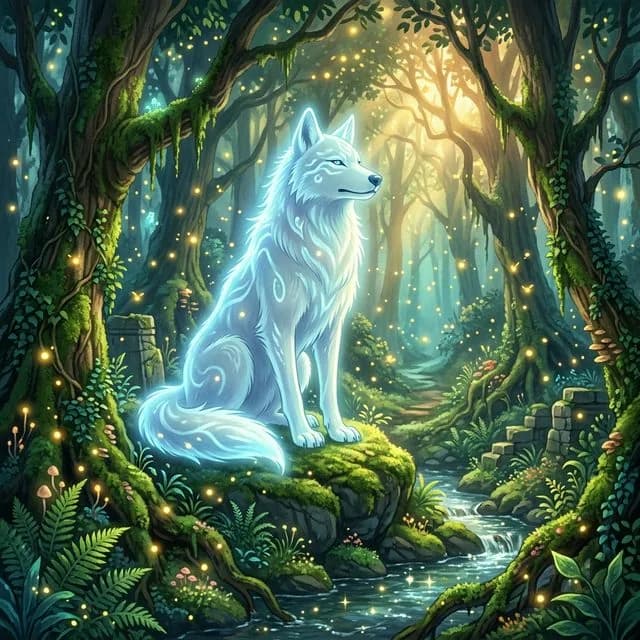
Ancient Forest Spirit
Glowing fireflies, lush green moss, gentle sunlight
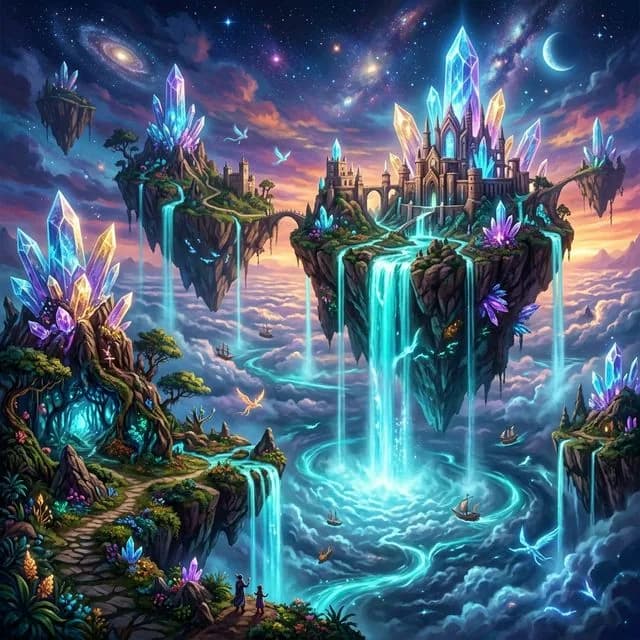
Surreal Floating Islands
Giant crystalline structures, ethereal majestic mood, highly detailed concept art
Frequently Asked Questions
Do I need to write long prompts to get good images?+
No. One clear sentence covering a subject, a setting, and a style already outperforms a paragraph of vague adjectives. Start short, look at the result, and add detail only where the image drifted from your idea. The built-in enhance option can expand a short line for you.
Which aspect ratio should I pick?+
Match the frame to the destination: 1:1 square for profile images and product shots, 16:9 for blog headers and video thumbnails, 9:16 for phone wallpapers and Stories, and 4:3 or 3:4 for print-style layouts. The ratio also nudges composition, since wide frames encourage scenery while tall frames favor single subjects.
Is the text to image generator free, and do I need to install anything?+
It is free to start. A daily quota of no-cost credits is attached to every account, and the whole experience lives in the browser with nothing to download. Enter a description, generate, and save the picture straight from the page. Recent results stay in an on-page history so you can compare attempts.
What is a negative prompt and when should I use one?+
A negative prompt lists things you want excluded, like text overlays, extra limbs, or washed-out colors. Leave it empty for your first render, then add specific terms when the same flaw keeps appearing. It is often faster than rewording the main description to steer around a problem.